Turning on Automatic Updates in Windows may cause the validation to run in your system.
If your system is found as Pirated by the Microsoft, messages are displayed from the startup itself.
And we must wait for the dialog "Resolve Later".
You can remove that messages and system tray icon by following method.
For this you need a software, File Replacer. A simple program to replace system files.
Download FileReplacer.zip
After downloading FileReplacer.zip file,extract it to get the software.
Now follow the steps below:
1. Anywhere in your drives, create a text file (.txt)
2. Rename it to wgatray.exe
3. Now open the downloaded program Replacer.cmd
4. Open the system drive (mostly C:\) and click on search button, and search for the file wgatray.exe
5. From the search results shown, drag the wgatray.exe file and drop it in the Replacer.cmd window and press Enter.
6. Now drag and drop the initially created wgatray.exe to the same window, press Enter.
7. Confirm the file replacement.
The first part is completed and the replacer program quits.
8. Now create a wgalogon.dll as described in steps 1 and 2.
9. Replace the original file x:\windows\system32\wgalogon.dll with this junk file as described in steps 3 to 7. ( 'x' is the system drive)
10. Open Registry Editor (Disabled?)(No Run in Start menu?)
11. Press Home button keyboard.
12. Press Ctrl+F to open the Find dialog box.
13. Type in wgatray.exe and click on Find Next.
14. Delete the key that has the values wgatray.exe
[Make sure you backup every keys before doing any deletion]
Repeat steps 13 and 14 till no search results are found.
15. Repeat the steps 11 to 14, to find and delete regisrtry entries containing "wgalogon.dll"
This should help you to solve it.

Showing posts with label Disable\Enable. Show all posts
Showing posts with label Disable\Enable. Show all posts


"Orkut spreads virus" problem in IE
Orkut may be barred as a virus spreading site by the IE due to the presence of a worm
file win.exe
Win.exe is file that itself has no description or a window. It starts with windows
in the background. This program can monitor our inputs, applications and also may
block users from opening Orkut in IE displaying a message saying that orkut spreads viruses.
When this happens to you, do the following:
Open Task Manager (Disabled?)
Select Processes tab, right click on the process win.exe and select End Process Tree and click Yes to confirm.
Now you can access Orkut in IE.
Now to remove it completely, the below steps may be helpful:
Check for the file win.exe in
C:\ (windows drive)
C:\windows (system root)
C:\Documents and Settings
If found delete it.
Open Registry Editor (Disabled?)(No Run in Start menu)
Press Home button keyboard. (If you have a already open tree in registry editor)
Press Ctrl+F to open the Find dialog box.
Type in win.exe and click on Find Next.
Delete the key that has the values win.exe [Make sure you backup every keys before doing any deletion]
Below keys may have the win.exe entry:
HKEY_LOCAL_MACHINE\SOFTWARE\Microsoft\Windows\CurrentVersion\Run
HKEY_LOCAL_MACHINE\SOFTWARE\Microsoft\Windows\CurrentVersion\RunServices
HKEY_LOCAL_MACHINE\Software\Microsoft\Windows\CurrentVersion\Explorer\User Shell Folders
HKEY_USERS\.DEFAULT\Software\Microsoft\Windows\CurrentVersion\Run
(want to jump directly to a registry key?)
This should help you to get rid of the problem.
file win.exe
Win.exe is file that itself has no description or a window. It starts with windows
in the background. This program can monitor our inputs, applications and also may
block users from opening Orkut in IE displaying a message saying that orkut spreads viruses.
When this happens to you, do the following:
Open Task Manager (Disabled?)
Select Processes tab, right click on the process win.exe and select End Process Tree and click Yes to confirm.
Now you can access Orkut in IE.
Now to remove it completely, the below steps may be helpful:
Check for the file win.exe in
C:\ (windows drive)
C:\windows (system root)
C:\Documents and Settings
If found delete it.
Open Registry Editor (Disabled?)(No Run in Start menu)
Press Home button keyboard. (If you have a already open tree in registry editor)
Press Ctrl+F to open the Find dialog box.
Type in win.exe and click on Find Next.
Delete the key that has the values win.exe [Make sure you backup every keys before doing any deletion]
Below keys may have the win.exe entry:
HKEY_LOCAL_MACHINE\SOFTWARE\Microsoft\Windows\CurrentVersion\Run
HKEY_LOCAL_MACHINE\SOFTWARE\Microsoft\Windows\CurrentVersion\RunServices
HKEY_LOCAL_MACHINE\Software\Microsoft\Windows\CurrentVersion\Explorer\User Shell Folders
HKEY_USERS\.DEFAULT\Software\Microsoft\Windows\CurrentVersion\Run
(want to jump directly to a registry key?)
This should help you to get rid of the problem.
Policy settings for the Start menu in Windows XP
This post provides descriptions of the registry entries for policies that you can apply to the Start menu in Microsoft Windows XP.
The settings on Start menu is controlled by the registry values under the registry key,
HKEY_CURRENT_USER\Software\Microsoft\Windows\CurrentVersion\Policies\Explorer
Here, we can create a D-WORD registry value for a setting, that has values 1 (enable) or 0 (Disable).
That is, for a setting such as, for Run in start menu, NoRun D-WORD is used. Setting its value to 1 will remove Run from Start menu, Task Manager etc. And setting the value to 0 will show Run in respective areas.
Below are the D-WORDs and its description.
All this D-WORDS must be created under the key HKEY_CURRENT_USER\Software\Microsoft\Windows\CurrentVersion\Policies\Explorer (except in those case which has given its on path) to take effect.(you may need to restart)
To create a D-WORD, after getting to the above key, right click in an empty space and select New > DWORD Value.
Warning :
Serious problems might occur if you modify the registry incorrectly by using Registry Editor or by using another method. These problems might result you to even reinstall your operating system. You must Export the key before you make any changes.Modify the registry at your own risk.
Example: For the above policy (Remove user name from Start Menu) , create a D-WORD and name it NoUserNameInStartMenu. Set its value to 0 for showing and to 1 for hiding the User name in Start menu.
For further assistance please feel free to scrap me in My Orkut Profile.
©MicrosoftSupport
The settings on Start menu is controlled by the registry values under the registry key,
HKEY_CURRENT_USER\Software\Microsoft\Windows\CurrentVersion\Policies\Explorer
Here, we can create a D-WORD registry value for a setting, that has values 1 (enable) or 0 (Disable).
That is, for a setting such as, for Run in start menu, NoRun D-WORD is used. Setting its value to 1 will remove Run from Start menu, Task Manager etc. And setting the value to 0 will show Run in respective areas.
Below are the D-WORDs and its description.
All this D-WORDS must be created under the key HKEY_CURRENT_USER\Software\Microsoft\Windows\CurrentVersion\Policies\Explorer (except in those case which has given its on path) to take effect.(you may need to restart)
To create a D-WORD, after getting to the above key, right click in an empty space and select New > DWORD Value.
Warning :
Serious problems might occur if you modify the registry incorrectly by using Registry Editor or by using another method. These problems might result you to even reinstall your operating system. You must Export the key before you make any changes.Modify the registry at your own risk.
Policies and Description:


Policy:Disable the new simple Start Menu
Description:Disables the new simple Start menu and forces the classic
Start menu.
Registry Value:"NoSimpleStartMenu"

Policy:Remove pinned programs list from the Start menu
Description:Removes the pinned programs list from the Start menu. Also
removes the Internet and E-mail checkboxes from the Start menu
customization CPL.
Registry Value:"NoStartMenuPinnedList"

Policy:Remove frequent programs list from the Start Menu
Description:Removes the frequently-used programs list from the Start
menu.
Registry Value:"NoStartMenuMFUprogramsList"

Policy:Remove More Programs list from the Start menu
Description:Removes the More Programs list from the Start menu.
Registry Value:"NoStartMenuMorePrograms"

Policy:Remove common program groups from Start Menu
Description:Removes items in the All Users profile from the More
Programs list on the Start menu.
Registry Value:"NoCommonGroups"

Policy:Gray unavailable Windows Installer programs Start Menu shortcuts
Description:Displays partially installed programs in gray text on the
Start menu.
Registry Value:"GreyMSIAds"

Policy:Disable and remove links to Windows Update
Description:Removes the Windows Update link from the More Programs list
in Start menu, from the Tools menu in IE, and blocks user access to
windowsupdate.Microsoft.com.
Registry Value:"NoWindowsUpdate"

Policy:Remove user folders from the Start Menu
Description:Removes all user-specific folders except My Documents (My
Pictures, My Music, Favorites, and Recent Documents) from the Start menu.
Also removes the corresponding checkboxes from the Start menu
customization CPL.
Registry Value:This is a combination of the following:
"NoStartMenuMyMusic", "NoSMMyPictures","NoFavoritesMenu",
"NoRecentDocsMenu"

Policy:Prohibit user from changing user folder paths
Description:Prevents users from changing the path to the My Pictures,
My Music, Favorites, and Recent Documents folders.
Registry Value:"DisableMyPicturesDirChange", "DisableMyMusicDirChange",
"DisableFavoritesDirChange".

Policy:Remove My Documents folder from the Start Menu
Description:Removes My Documents folder from the Start menu and
corresponding checkbox from the Start menu customization CPL.
Registry Value:"NoSMMyDocs"

Policy:Prohibit user from changing My Documents path
Description:Prevents users from changing the path to the My Documents
folder.
Registry Value:"DisablePersonalDirChange"

Policy:Remove Recent Documents item from Start Menu
Description:Removes the Recent Documents folder from the Start menu. Also
removes the corresponding checkbox from the Start menu customization CPL.
Registry Value:"NoRecentDocsMenu"

Policy:Maximum number of recent documents
Description:Specifies the number of shortcuts displayed on the Recent
Documents submenu.
This policy exist under the following location in Group Policy:
User Configuration \ Administrative Templates \ Windows Components
Registry Value:"MaxRecentDocs"

Policy:Clear history of recent documents on exit
Description:Deletes all shortcuts shown in the Recent Documents menu when
the user logs off.
Registry Value:"ClearRecentDocsOnExit"

Policy:Remove Favorites item from Start Menu
Description:Prevents users from adding the Favorites item to the Start
menu. Also removes the corresponding checkbox from the Start menu
customization CPL.
Registry Value:"NoFavoritesMenu"

Policy:Remove My Computer from the Start Menu
Description:Removes the My Computer item from the Start Menu and the
corresponding checkbox from the Start menu customization CPL.
Registry Value:"{20D04FE0-3AEA-1069-A2D8-08002B30309D}" under
HKCU\Software\Microsoft\Windows\CurrentVersion\Policies\NonEnum.

Policy:Remove Network Connections from the Start Menu
Description:Removes the Network Connections item from the Start menu
and the corresponding checkbox from the Start menu customization CPL.
Registry Value:"NoNetworkConnections"

Policy:Remove Network Places from the Start Menu
Description:Removes the Network Places item from the Start menu and the
corresponding checkbox from the Start menu customization CPL.
Registry Value:"NoStartMenuNetworkPlaces"

Policy:Do not add shares of recently used documents to Network Places
Description:Remote shared folders are not added to Network Places whenever
you open a document in the shared folder.
Registry Value:"NoRecentDocsNetHood"

Policy:Remove Help item from Start Menu
Description:Removes the Help item from the Start menu, but does not
disable Help files from running.
Registry Value:"NoSMHelp"

Policy:Remove Search item from Start Menu
Description:Removes the Search item from the Start menu and disables some
Windows Explorer search elements.
Registry Value:"NoFind"

Policy:Remove Run item from Start Menu
Description:Removes the ability to execute programs from the Run option
on the Start menu, Task Manager, or by pressing Winkey + R. Also removes
the corresponding checkbox from the Start menu customization CPL.
Registry Value:"NoRun"

Policy:Add "Run in Separate Memory Space" check box to Run dialog box
Description:Allows 16-bit programs to run in a dedicated Virtual DOS
Machine (VDM) process.
Registry Value:"MemCheckBoxInRunDlg"

Policy:Do not use the search-based method when resolving shell shortcuts
Description:Prevents the system from conducting a comprehensive search of
the target drive to resolve a shortcut.
Registry Value:"NoResolveSearch"

Policy:Do not use the tracking-based method when resolving shell shortcuts
Description:Prevents the system from using NTFS features to resolve a
shortcut.
Registry Value:"NoResolveTrack"

Policy:Force Logoff to the Start Menu
Description:Forces the Logoff button to the Start menu and prevents users
from removing the Logoff option from the Start menu.
Registry Value:"ForceStartMenuLogoff"

Policy:Disable Logoff on the Start Menu
Description:Removes the "Logoff" button from the Start menu and prevents
users from adding the Logoff button to the Start menu.
Registry Value:"StartMenuLogoff"

Policy:Disable and remove the Turn Off Computer button
Description:Removes the "Turn Off Computer" button from the Start Menu and
prevents shutting down Windows using the standard shutdown user interface.
Registry Value:"NoClose"

Policy:Disable and remove the Undock PC command
Description:Removes the "Undock PC" button from the Start Menu and
prevents undocking of the PC (laptop).
Registry Value:"NoStartMenuEjectPC"

Policy:Disable drag-and-drop menus on the Start Menu
Description:Prevents users from modifying the Start menu by dragging and
dropping items. Other methods of customizing the Start menu are still
enabled.
Registry Value:"NoChangeStartMenu"

Policy:Disable changes to Taskbar and Start Menu settings
Description:Removes the Taskbar & Start Menu item from the Control
Panel, and removes the Properties item from the Start menu (and button)
context menu.
Registry Value:"NoSetTaskbar"

Policy:Disable user tracking
Description:Prevents the system from remembering the programs run, paths
followed, and documents used.
Registry Value:"NoInstrumentation"

Policy:Remove user name from Start Menu
Description:Removes the user name from the Start menu.
Registry Value:"NoUserNameInStartMenu"
Example: For the above policy (Remove user name from Start Menu) , create a D-WORD and name it NoUserNameInStartMenu. Set its value to 0 for showing and to 1 for hiding the User name in Start menu.
For further assistance please feel free to scrap me in My Orkut Profile.
©MicrosoftSupport
Command prompt disabled
Use this method to enable the Command Prompt.
There are three methods: (Or download file from bottom)
Method 1: (Run method)
1. Select Run from Start menu. (No Run?)
2. Type the following: (better copy and paste)
REG add HKCU\Software\Policies\Microsoft\Windows\System /v DisableCMD /t REG_DWORD /d 0 /f
and press Enter.(Click OK)
Method 2: (Registry Editor method)
1. Open Registry Editor. [(No Run?)((Regedit disabled?)]
2. Get to this key:
HKEY_CURRENT_USER\Software\Policies\Microsoft\Windows\System
[How to Jump directly to a Key?]
3. In the right pane, double click on DisableCMD and set it's data to 0.
4. Close Registry Editor.
Method 3: (Group Policy method)
1. From Start menu, select Run. Type gpedit.msc and press Enter. [(No Run?)(gpedit error?)]
Group Policy editor opens.
2. Get to:
User Configuration > Administrative Templates > System
3. From the right pane, double click open Prevent access to the command prompt.
4. Set Disable and click OK.
5. Exit Group Policy editor.
Download files:
1. CMD- enable. (.rar file, extract to get .reg file)
.
There are three methods: (Or download file from bottom)
Method 1: (Run method)
1. Select Run from Start menu. (No Run?)
2. Type the following: (better copy and paste)
REG add HKCU\Software\Policies\Microsoft\Windows\System /v DisableCMD /t REG_DWORD /d 0 /f
and press Enter.(Click OK)
Method 2: (Registry Editor method)
1. Open Registry Editor. [(No Run?)((Regedit disabled?)]
2. Get to this key:
HKEY_CURRENT_USER\Software\Policies\Microsoft\Windows\System
[How to Jump directly to a Key?]
3. In the right pane, double click on DisableCMD and set it's data to 0.
4. Close Registry Editor.
Method 3: (Group Policy method)
1. From Start menu, select Run. Type gpedit.msc and press Enter. [(No Run?)(gpedit error?)]
Group Policy editor opens.
2. Get to:
User Configuration > Administrative Templates > System
3. From the right pane, double click open Prevent access to the command prompt.
4. Set Disable and click OK.
5. Exit Group Policy editor.
Download files:
1. CMD- enable. (.rar file, extract to get .reg file)
.
Turn off Autoplay of CD
You can turn off the Autoplay feature of CD drive by this method.
There are two methods: (only use any one method)
Group Policy method:
1. From the Start menu, select Run (No Run?). Type gpedit.msc and press Enter.(error?)
2. Get to this location:
Computer Configuration > Administrative Templates > System
3. Now, in the right pane double click open Turn off Autoplay. Select Enable and press OK.
To again enable Autoplay, select Disable here.
Registry Editor Method:
1. Open Notepad.
2. Copy and paste the following into it:
Windows Registry Editor Version 5.00
[HKEY_LOCAL_MACHINE\SYSTEM\CurrentControlSet\Services\Cdrom]
"AutoRun"=dword:00000000
3. Save that file and change extension fom .txt to .reg .
4. Double click open that file, click Yes and then OK.
To enable Autoplay again change the last line of the above text to:
"AutoRun"=dword:00000001
If you have any more doubts on this topic click the Orkut Profile button and scrap me.
There are two methods: (only use any one method)
Group Policy method:
1. From the Start menu, select Run (No Run?). Type gpedit.msc and press Enter.(error?)
2. Get to this location:
Computer Configuration > Administrative Templates > System
3. Now, in the right pane double click open Turn off Autoplay. Select Enable and press OK.
To again enable Autoplay, select Disable here.
Registry Editor Method:
1. Open Notepad.
2. Copy and paste the following into it:
Windows Registry Editor Version 5.00
[HKEY_LOCAL_MACHINE\SYSTEM\CurrentControlSet\Services\Cdrom]
"AutoRun"=dword:00000000
3. Save that file and change extension fom .txt to .reg .
4. Double click open that file, click Yes and then OK.
To enable Autoplay again change the last line of the above text to:
"AutoRun"=dword:00000001
If you have any more doubts on this topic click the Orkut Profile button and scrap me.
Regedit disabled by Administrator
Sometimes, Registry Editor may be disabled by the Administrator. You can access Registry Editor by this method.
Click here to get the Security softwares download page.
-------------------------------------
How to do:
2. Get to this location:
User Configuration > Administrative Templates > System
3. Now, in the right pane, double click open Prevent access to registry editing tools.

4. Set Not configured or Disabled, and click OK.
That makes Registry Editor accessible.
Related:
1. Task Manager Disabled
2. Folder Options Disabled
3. No Run in start menu
For further help, you can scrap me.
Automatic Logon to Windows.
By following this method you can get automatically logged in into your system, even if other accounts exists.
Steps:
1. Select Run from Start menu.
2. Type control userpasswords2 , and press Enter.
User Accounts dialog box appears.
3. Select the user which is to be automatically logged in without prompting for password.
4. Uncheck the item Users must enter a user name and a password to use this computer.

5. Click Apply.
6. Enter the User Name and Password (If you have no password, leave password columns blank) of the account. Press OK.
Now restart your computer.
To remove auto login function:
1. Select Run from Start menu.
2. Type the following (or copy and paste)
rundll32 netplwiz.dll,ClearAutoLogon , and press Enter.
Now restart your computer to see the change.
Steps:
1. Select Run from Start menu.
2. Type control userpasswords2 , and press Enter.
User Accounts dialog box appears.
3. Select the user which is to be automatically logged in without prompting for password.
4. Uncheck the item Users must enter a user name and a password to use this computer.

5. Click Apply.
6. Enter the User Name and Password (If you have no password, leave password columns blank) of the account. Press OK.
Now restart your computer.
To remove auto login function:
1. Select Run from Start menu.
2. Type the following (or copy and paste)
rundll32 netplwiz.dll,ClearAutoLogon , and press Enter.
Now restart your computer to see the change.
Folder Options Disabled
Due to some viruses or malicious softwares, Folder Options may disappear. You can get back it by this method.
Note: This method works only if the viruses are completely removed.
-------------------------------------
Click here to get the Security softwares download page.
-------------------------------------
To get Folder Options:
1. From Start menu, select Run. Type gpedit.msc and press Enter. [(No Run?)(error?)]
General Policy window opens.
2. Get to this location:
User Configuration > Administrative Templates > Windows Components > Windows Explorer
Now, in the right pane double click open Removes the Folder Options item from the Tools menu.
Select Disabled and press OK.
Thats the work.
This may not solve your problem, if it was caused by Virus.
The following steps helps to remove the Virus too.
Recommended doing these steps in Safe mode.
The Virus is named as HEAP41a.
They creates a folder HEAP41a in the system drive for their functioning.
Removing this folder can remove the virus.
1. Open Notepad
2. Type the following text
rmdir C:\HEAP41a
where C:\ is your Windows drive.
3. Save that text file.
4. Change its extension from .txt to .bat
5. Double click open it.
A Dos windows now flashes.
The virus is removed.
6. Keep your Antivirus uptodate to get rid of such viruses.
Also Run this file:
1. Delete Autorun files in Drives.
Related:
1. Task Manager Disabled
2. Regedit Disabled
3. No Run in start menu
For further help, you can scrap me.
Note: This method works only if the viruses are completely removed.
-------------------------------------
Click here to get the Security softwares download page.
-------------------------------------
To get Folder Options:
1. From Start menu, select Run. Type gpedit.msc and press Enter. [(No Run?)(error?)]
General Policy window opens.
2. Get to this location:
User Configuration > Administrative Templates > Windows Components > Windows Explorer
Now, in the right pane double click open Removes the Folder Options item from the Tools menu.
Select Disabled and press OK.
Thats the work.
This may not solve your problem, if it was caused by Virus.
The following steps helps to remove the Virus too.
Recommended doing these steps in Safe mode.
The Virus is named as HEAP41a.
They creates a folder HEAP41a in the system drive for their functioning.
Removing this folder can remove the virus.
1. Open Notepad
2. Type the following text
rmdir C:\HEAP41a
where C:\ is your Windows drive.
3. Save that text file.
4. Change its extension from .txt to .bat
5. Double click open it.
A Dos windows now flashes.
The virus is removed.
6. Keep your Antivirus uptodate to get rid of such viruses.
Also Run this file:
1. Delete Autorun files in Drives.
Related:
1. Task Manager Disabled
2. Regedit Disabled
3. No Run in start menu
For further help, you can scrap me.
Task Manager Disabled
Sometimes Task Manager may be disabled.
It may be due to a virus, but may not be.
I
f Task Manager is still disabled after removing the viruses, you can use this method to get it enabled.
-------------------------------------
Click here to get the Security softwares download page.
-------------------------------------
There are two methods: (Or download file from the bottom)
A. General Policy Method:
1. From Start menu select Run and type gpedit.msc and hit enter. (error?)
General Policy window opens.
2. Get to this location:
User Configuration > Administrative Templates > System > Ctrl+Alt+Del Options
3. In the right pane, double click open Remove Task Manager.
Select Disabled and press OK.
B. Registry Editor Method:
1. From the Start menu, select Run. (Window Key + R) (No Run?)
2. Copy and paste the following and hit Enter.
REG add HKCU\Software\Microsoft\Windows\CurrentVersion\Policies\System /v DisableTaskMgr /t REG_DWORD /d 0 /f
The Task Manager will be enabled.
Download files:
1. Task Manager-Enable/Disable files (.rar file, extract to get .bat files, read Read this.txt)
Related:
1. Task Manager Disabled
2. Regedit Disabled
3. No Run in start menu
For further help, you can scrap me.
It may be due to a virus, but may not be.
I
f Task Manager is still disabled after removing the viruses, you can use this method to get it enabled.
-------------------------------------
Click here to get the Security softwares download page.
-------------------------------------
There are two methods: (Or download file from the bottom)
A. General Policy Method:
1. From Start menu select Run and type gpedit.msc and hit enter. (error?)
General Policy window opens.
2. Get to this location:
User Configuration > Administrative Templates > System > Ctrl+Alt+Del Options
3. In the right pane, double click open Remove Task Manager.
Select Disabled and press OK.
B. Registry Editor Method:
1. From the Start menu, select Run. (Window Key + R) (No Run?)
2. Copy and paste the following and hit Enter.
REG add HKCU\Software\Microsoft\Windows\CurrentVersion\Policies\System /v DisableTaskMgr /t REG_DWORD /d 0 /f
The Task Manager will be enabled.
Download files:
1. Task Manager-Enable/Disable files (.rar file, extract to get .bat files, read Read this.txt)
Related:
1. Task Manager Disabled
2. Regedit Disabled
3. No Run in start menu
For further help, you can scrap me.
Run Disabled in Start Menu
Sometimes you may not see the option Run in your start menu.This may be due to viruses or some newly installed softwares.You can get back Run in start menu.
If you doesnt remove the virus (if it is so), Run may disappear each time you reboots.
-------------------------------------
Click here to get the Security softwares download page.
-------------------------------------
To get Run:
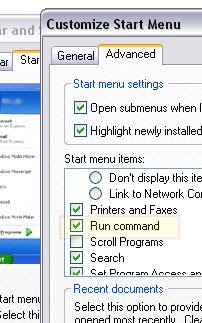 First method:
Right click on Start menu and selectProperties.
Then select Customize.
Now select Advanced tab.
Under Start Menu Items coulumn, tick Run Command.
Second method:
1. Open this file
C:\WINDOWS\system32\gpedit.msc (C=Windows drive).
General Policy window opens.
2. In the left pane, get to
User Configuration>Administrative Templates>Start Menu and Taskbar
3.Now, in the right pane double click open
Remove Run menu from Start menu, select Disabled and click OK.
1. Task Manager Disabled
2. Regedit Disabled
3. No Run in start menu
For further help, you can scrap me.
If you doesnt remove the virus (if it is so), Run may disappear each time you reboots.
-------------------------------------
Click here to get the Security softwares download page.
-------------------------------------
To get Run:
 First method:
Right click on Start menu and selectProperties.

Then select Customize.
Now select Advanced tab.
Under Start Menu Items coulumn, tick Run Command.
Second method:
1. Open this file
C:\WINDOWS\system32\gpedit.msc (C=Windows drive).
General Policy window opens.
2. In the left pane, get to
User Configuration>Administrative Templates>Start Menu and Taskbar
3.Now, in the right pane double click open
Remove Run menu from Start menu, select Disabled and click OK.
Related:
1. Task Manager Disabled
2. Regedit Disabled
3. No Run in start menu
For further help, you can scrap me.
Subscribe to:
Posts (Atom)
